Android widgets worth using in 2026 (and how to add them)
What a widget is, and what it is not
A widget is a window into an app that lives on your home screen and updates without you opening anything: the weather, your calendar, your notes or the music player. It is not a shortcut or a big icon; it is live information the app publishes every so often.
The practical difference: an icon takes you to the app, a widget gives you the data without going in. That is why the value is not in having many, but in having the right ones.
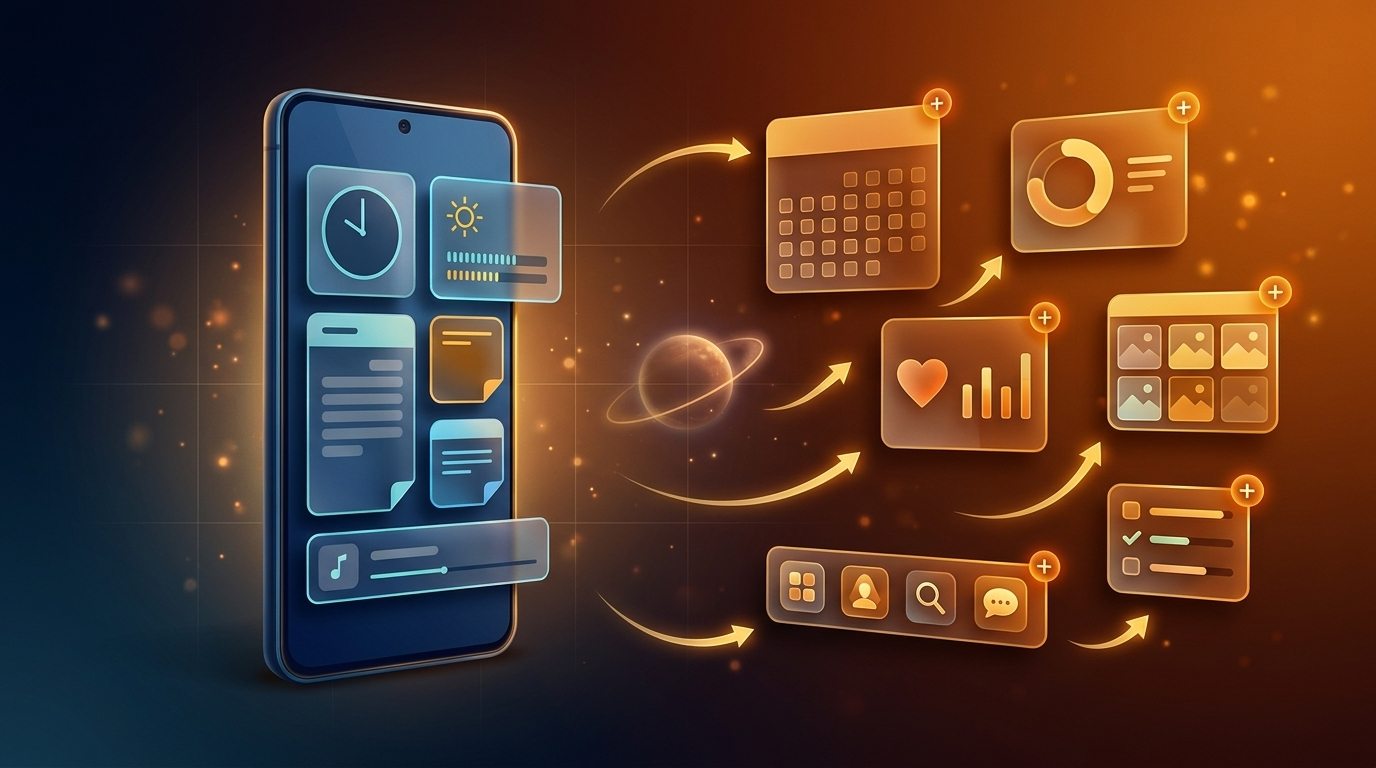
Android widgets on the home screen
How to add, move and resize
- Long-press an empty spot on the home screen.
- Tap Widgets in the menu.
- Pick the app and drag the widget into place.
- To resize, long-press the widget and drag the edge handles.
- To remove it, long-press and choose Remove, or drag it to the bin.
If the widget menu does not appear, check you are on the system launcher and not a third-party one with its own menu.
The ones worth using, by category
| Category | Widget | Why it earns its space | Recommended size |
|---|---|---|---|
| Clock and weather | System clock + weather | The most consulted thing all day, updates cheaply | 2×2 or 4×2 |
| Agenda | Google Calendar | See the next event without opening the app | 4×2 |
| Notes | Google Keep | One-tap note without waiting for it to load | 2×2 |
| Tasks | Todoist or Tasks | Today’s list, always visible | 4×2 |
| Music | Spotify or the system player | Control without unlocking or switching apps | 4×1 |
| Battery | System settings | Per-app usage and time left | 2×2 |
| Wellbeing | Digital Wellbeing | Screen time and most-used apps | 4×2 |
| Home | Home Assistant | Scenes and sensors without opening the app | 4×2 |
| Health | Fitbit or Google Fit | Steps and daily activity | 2×2 |
The rule: one widget per thing you actually check. If you do not look at it at least once a day, it takes space and resources for nothing.
Stacking widgets: only on some launchers
Widget stacking is not a standard Android feature. The Pixel launcher does not offer it; Samsung One UI does, and so do some third-party launchers. On Samsung, long-press a widget and choose Create stack; then you can add more widgets to the stack. On compatible launchers, drag one widget on top of another. To undo it, long-press the stack and drag the widget out.
If your launcher does not have it, that is not a bug: use multiple pages or switch launchers. And note: a stack does not reduce battery use, only screen space.
Which ones drain battery (and how to spot them)
A widget costs based on how often it refreshes and whether it holds a connection open. The worst offenders:
- Clocks with a seconds hand and widgets refreshing every minute.
- Social feeds that keep pulling new content.
- “Cleaner” or “booster” widgets: they do not free real RAM and consume it themselves.
- Weather with looping animated radar.
If battery life got worse after adding something, remove the last widget and compare a day. To go further, see our guide to reducing battery consumption.
Fine-tuning: size, color and transparency
- Material You: since Android 12, widgets from compatible apps adopt your wallpaper colors. Change the wallpaper and the palette follows. It is controlled from the app’s settings or the widget itself.
- Size: most offer three or four sizes. Too big leaves empty space; too small cuts off text.
- Transparency: some launchers let you adjust the widget background opacity, which helps it blend into the desktop.
If you are rebuilding your home screen, start with the guide to organizing your Android home screen and leave widgets for last: first the apps you use, then the data you want to see. And if you like changing the look, Android themes pair well with a desktop that has few, well-chosen widgets.
The bottom line
A good home screen has few widgets, well chosen: clock and weather, calendar, notes and music cover most of what people check. Stack them if your launcher supports it, avoid anything refreshing every minute, and remove without guilt whatever you have not looked at in a week.
Sources
- Samsung — Stacked widgets on the home screen
- Android Developers — App widgets overview
- Android Authority — Features the Pixel launcher is missing