Android gestures to be more productive
Android gestures to be more productive
Android gestures are not just a modern way to navigate your phone. When set up well, they reduce repetitive taps, speed up app switching, and make small tasks like copying an address or checking a notification take less time.
The key is not to learn every gesture at once. The useful approach is to choose a few that fit your routine: going back without thinking, switching between two apps, opening multitasking, capturing information, and activating quick actions without searching for icons.
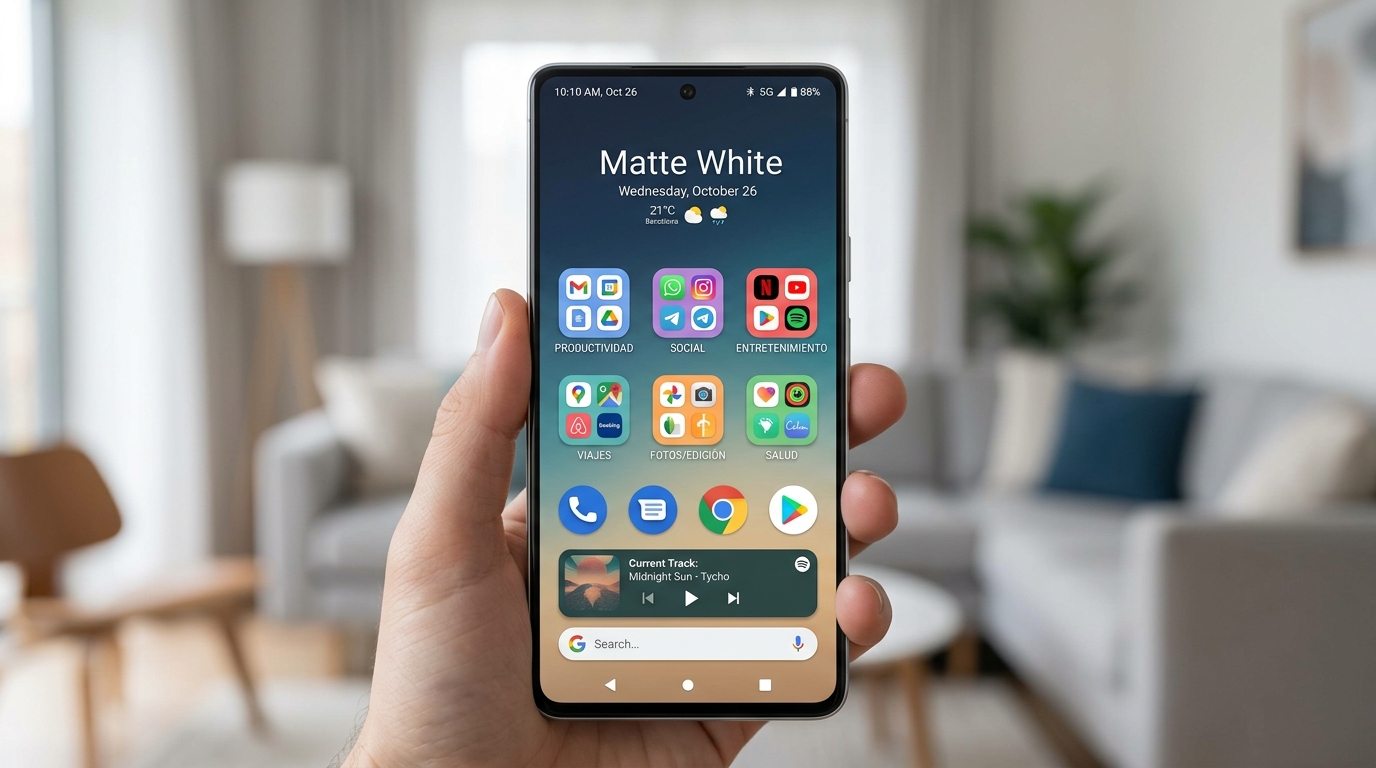
Android gestures to organize your daily workflow
1. Enable gesture navigation
If you are still using the three classic Android buttons, try gesture navigation for a few days. On most phones you will find it in Settings > System > Gestures > System navigation, though some brands place it under Display, Home screen, or Additional settings.
With gesture navigation you can:
- Swipe up from the bottom to go to the home screen.
- Swipe up and hold to open recent apps.
- Swipe from the left or right edge to go back.
- Swipe horizontally on the bottom bar to switch between recent apps.
At first it may feel less precise than buttons, but when the gesture becomes automatic it saves quite a bit of movement. It is especially comfortable on large phones where reaching the bottom of the screen with one hand can be awkward.
2. Switch between two apps without opening multitasking
One of the most productive gestures is swiping on the bottom bar to alternate between recent applications. It works for very common tasks: copying data from an email to a spreadsheet, checking a verification code, looking up an address on Maps while typing in WhatsApp, or comparing information between the browser and a notes app.
The trick is to keep few apps open in the main flow. If you have too many recent apps, the gesture loses effectiveness because you start searching instead of alternating. For work sessions, keep only the two or three apps you are actually using visible.
3. Use the back gesture with intention
The back gesture from the edge is fast, but it can also be confusing in apps with side menus or carousels. If an app interprets the swipe as internal navigation, try starting the gesture a bit closer to the edge or changing the sensitivity from the navigation settings.
On some Android phones you can adjust the back gesture sensitivity. If you use a thick case, screen protector, or one-handed gestures, slightly increasing sensitivity can make the gesture more reliable. If you trigger gestures by accident when scrolling through photos or web pages, lower it.
4. Faster screenshots
Screenshots are a productivity tool when you use them to save temporary information: reservation numbers, addresses, receipts, important messages, or visual ideas. Android usually allows capturing with power + volume down, but many brands add more comfortable gestures.
Some common examples:
- Swipe three fingers down to capture the screen.
- Double-tap the back of the phone to execute an action.
- Use the quick settings panel for scrolling captures.
- Select text or images from the recent apps view.
If your phone has scrolling screenshots, use them to save long instructions, relevant conversations, or complete lists. Avoid taking five separate captures when one extended capture can keep the context in a single image.
5. Split screen for short tasks
Split screen is not comfortable for everything, but it works very well for specific tasks: viewing a code while logging in, checking a calendar while responding to a message, following a recipe, or reviewing a note while drafting an email.
It is usually activated from the recent apps view: open multitasking, tap the app icon, and choose Split screen or a similar option. On foldable phones or Android tablets, this gesture gains even more value because there is more space to work.
Do not try to turn your phone into a laptop. Split screen works best as occasional support, not as a permanent work mode. If a task requires long concentration, it may be better to use a tablet, computer, or an app with a better large-screen design.
6. Keyboard gestures for better typing
Productivity does not only depend on moving around Android. Writing with less friction also matters. On keyboards like Gboard you can swipe on the space bar to move the cursor, use swipe typing, and long-press keys to access frequent symbols.
Two especially useful gestures:
- Swipe on the space bar to place the cursor precisely.
- Swipe from delete toward the left to select and remove multiple words.
These gestures avoid tapping a word several times until you hit the cursor spot. If you write many messages, emails, or quick notes, they make a bigger difference than it seems.
7. Quick actions from the home screen
Many app icons have quick actions when long-pressed. You can directly open a conversation, create a note, start a route, scan a document, or write an email without going through the app main screen.
Additionally, some shortcuts can be dragged to the home screen as if they were independent icons. For example, a shortcut to a recurring note, a Drive folder, a frequent route, or an important contact.
For this to work well, it helps to have a clean home screen. If you want to prepare that environment, you can combine these gestures with our guide to organize your Android home screen.
8. Notification and quick settings gestures
The notification panel also has useful gestures. One swipe down opens notifications; a second swipe shows more quick settings. On some phones you can swipe with two fingers to open the full panel directly.
Organize your quick settings so the first positions are frequent actions: WiFi, Bluetooth, flashlight, Do Not Disturb, screen recording, hotspot, battery saver, or reading mode. Moving those controls to the top avoids going into Settings for simple tasks.
If you receive too many alerts, long-press a notification to silence that specific channel. You do not need to block the whole app: you can keep important messages and disable promotions, reminders, or secondary alerts.
9. Use accessibility gestures even if you do not always need them
Accessibility features are not only for permanent situations. They can also improve one-handed use, reduce repetitive movements, or make tasks easier when walking, cooking, or holding the phone in an awkward position.
Review options like:
- One-handed mode.
- Floating accessibility button.
- Magnification with gesture.
- Double or triple tap to execute an action.
- Screen reader or live captions.
Do not activate everything at once. Choose one function that solves a real problem. If you do not use it after a week, turn it off to keep the system simple.
10. Create a gesture routine for daily work
A good routine can be very simple. For example:
- Unlock the phone and open the main app from the home screen.
- Switch between notes and browser with the bottom bar gesture.
- Use split screen only when you need to copy data.
- Capture long information with scrolling screenshot.
- Activate Do Not Disturb from quick settings during focus blocks.
This combination covers most daily use without installing anything new. If you also take many notes, you can check our comparison of best note-taking apps for Android.
Common mistakes when using gestures
The first mistake is activating too many custom gestures. If every app, launcher, and accessibility tool has its own shortcuts, the phone becomes unpredictable. Productivity comes when gestures are few, repeatable, and easy to remember.
The second mistake is not adjusting sensitivity. A gesture that fails one out of three times does not save time; it creates frustration. Spend two minutes testing edges, case, screen protector, and hand size.
The third mistake is copying settings designed for another phone. Samsung, Pixel, Xiaomi, OPPO, Motorola, and other manufacturers change names, menus, and features. Use this guide as a map, but adapt the steps to your device.
Final recommendation
Start with three gestures: full navigation, quick app switching, and efficient screenshot capture. When those gestures become automatic, add split screen, keyboard shortcuts, and app quick actions.
The best setup is not the most spectacular. It is the one that lets you do the same thing with fewer steps, fewer interruptions, and less visual searching. If a gesture does not save you time after several days, remove it without guilt.
Sources and related reading
- Android Help - Navigate your phone
- Android Help - Take screenshots
- AndroidAtlas - Organize your home screen