Android game performance settings to check in 2026
Android game performance settings to check in 2026
Android games are more demanding than ever, but performance problems are not always caused by the game itself. Sometimes the issue is a setting: battery saver, low storage, background downloads, overheating, or a display mode that is not configured correctly.
Before uninstalling a game or blaming your phone, check these Android settings. They can make matches feel smoother and reduce the small interruptions that ruin a good session.
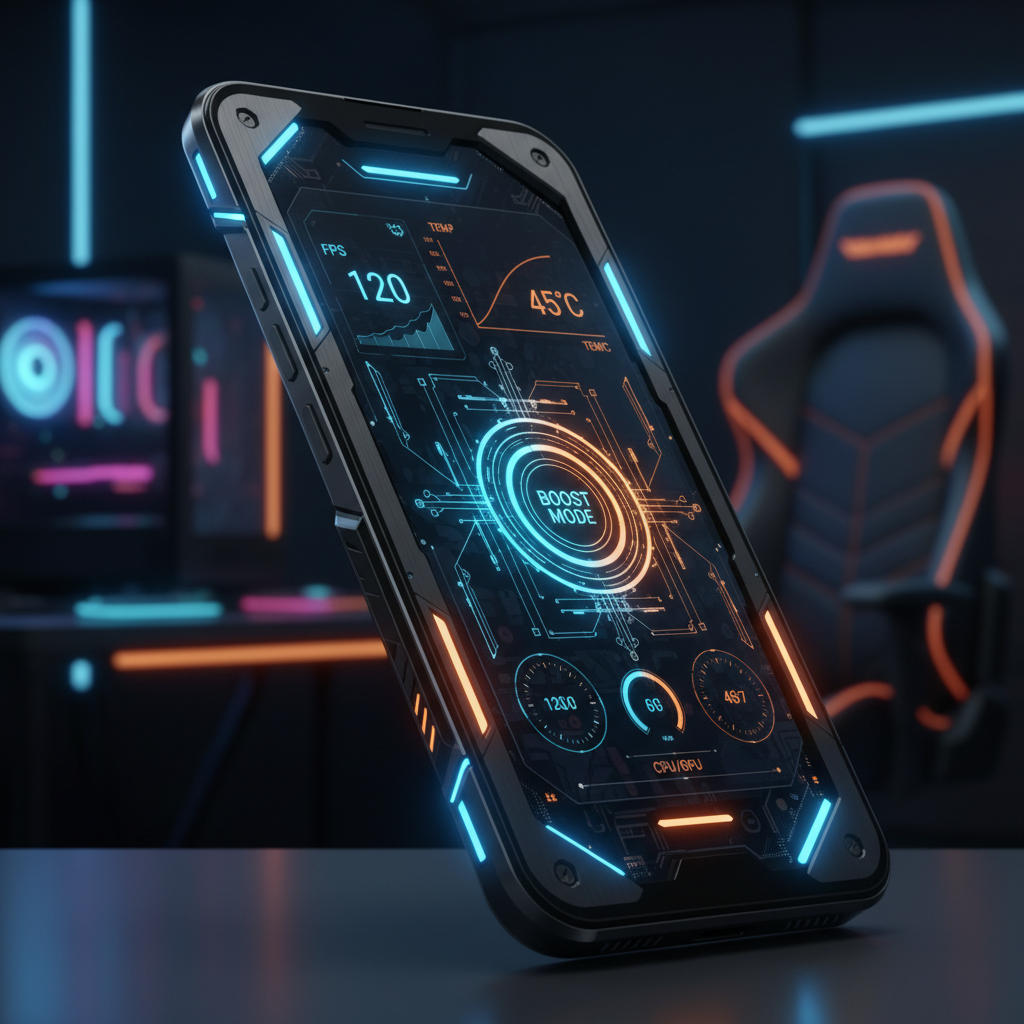
Android game performance settings
1. Refresh rate and display mode
If your phone supports 90 Hz, 120 Hz, or higher refresh rates, make sure the display setting is enabled. On many devices, you can find it under Settings > Display. Some phones also let you choose per-app performance modes through a gaming dashboard or manufacturer game launcher.
A higher refresh rate does not guarantee higher frames in every game, but it can make supported titles feel more responsive. If battery life matters more, use adaptive refresh rate instead of forcing the highest mode all day.
2. Battery saver and performance profiles
Battery saver is useful, but it is not always gaming-friendly. It may reduce background activity, limit brightness, or lower performance to extend battery life. If a game suddenly feels slower, check whether battery saver turned on automatically.
Some Android phones include modes such as Balanced, Performance, or Game mode. Use performance mode only when needed, because it can increase heat and battery drain.
3. Storage space
Low storage can make updates fail, slow down downloads, and leave games without enough room for caches or additional assets. Keep several gigabytes free, especially if you play large titles with frequent patches.
If your phone is crowded, start with our guide to freeing up Android storage. Removing old videos, duplicate downloads, and unused apps is usually safer than deleting random system files.
4. Notifications and focus
Nothing breaks concentration like a floating notification during a ranked match. Use Do Not Disturb, focus mode, or your phone’s gaming tools to block interruptions while playing.
For longer sessions, allow only priority calls or emergency contacts. That gives you silence without fully disconnecting from important alerts.
5. Network stability
For online games, network stability matters more than raw speed. A slower but stable WiFi connection can feel better than a fast connection with spikes. If latency jumps, move closer to the router, pause cloud backups, or switch from crowded WiFi to mobile data when your plan allows it.
Avoid downloading large game updates while playing another online game. It is an easy way to create lag without realizing it.
6. Heat management
Heat is one of the most common causes of sudden frame drops. Remove thick cases during long sessions, avoid direct sunlight, and give the phone a short break if it becomes uncomfortable to hold.
Charging while playing can also increase heat. If possible, charge before the session or use a lower-power charger when you do not need fast charging.
7. In-game graphics
After checking Android settings, adjust the game itself. Lower shadows, reflections, anti-aliasing, or texture quality before reducing resolution too aggressively. Many games also offer frame rate caps. A stable 60 FPS often feels better than an unstable higher target.
Best setup for most players
Use adaptive refresh rate, disable battery saver during play, keep enough storage free, block non-urgent notifications, and choose a stable network. Then adjust graphics inside each game based on heat and battery life.
If you need new games to test, start with our list of top free Android games in 2026.
Final recommendation
Do not change every setting at once. Test one variable per session: display, battery mode, storage, notifications, network, then graphics. That makes it much easier to find the setting that actually improves performance.