How to free up space on Android without losing your photos and files
How to free up space on Android without losing important photos and files
If your Android phone is running low on storage, you do not need to delete everything blindly. With a few careful steps, you can recover a lot of space, keep your photos safe, and make your phone feel faster again. If you want to go further, you can also read our tips to protect your Android mobile from computer attacks and our article about the advantages of using Android in the workplace.
The first thing to do is create a backup. Before deleting anything, check whether your photos and videos are already synced with Google Photos, Google Drive or another cloud service you normally use. If you are also looking to reduce background usage and improve efficiency, take a look at our Android 14 guide.
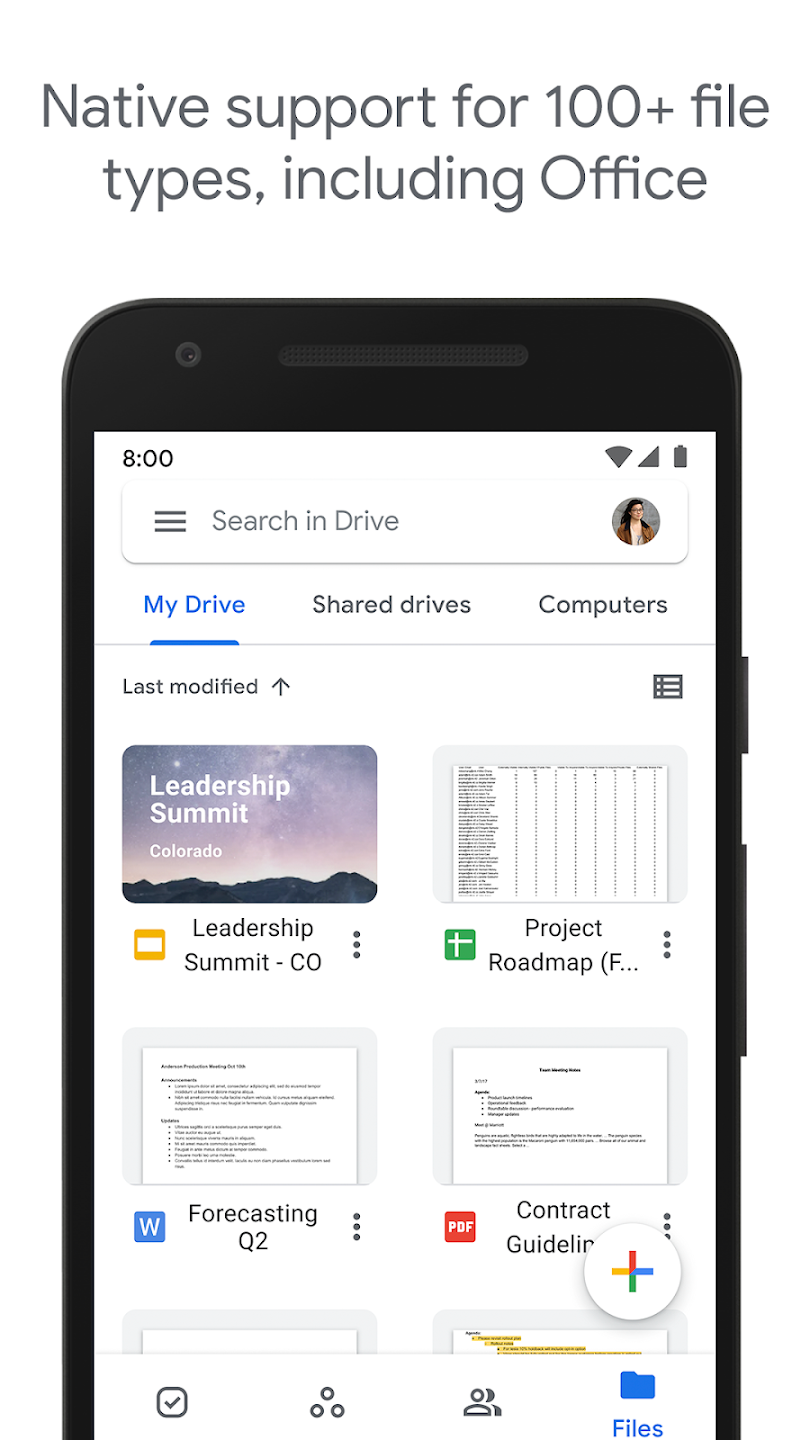
Google Drive
1. Check what is taking up the most space
Open Settings > Storage and review which category is using the most memory. You will usually find photos, videos, apps, downloads and temporary files there. That overview helps you decide what to clean first.
2. Clear cache and temporary files
Many apps build up temporary data over time. Clearing the cache of apps like your browser, social networks or messaging tools can free up space without removing your personal data.
3. Clean out the Downloads folder
The Downloads folder often fills up with documents, APK files, forwarded images and files you only needed once. Review its contents and delete anything you no longer need.
4. Organize WhatsApp and other messaging apps
Chats with videos, voice notes and photos often take up much more space than people expect. In WhatsApp you can review storage by conversation and remove the largest files without deleting the entire chat.
5. Upload photos and videos to the cloud
If you take lots of photos or record videos regularly, it is worth enabling automatic backup. That way you can delete from the device the files that are already safely stored in the cloud and still access them whenever you need them.
6. Uninstall apps you do not use
It is easy to keep apps installed long after you stop using them. Review the ones you have not opened in months and uninstall anything that no longer provides real value.
7. Move files to an SD card or computer
If your phone supports a microSD card, you can move music, videos or documents there. Another option is to transfer files to your computer and keep only what you actually need on the phone.
8. Use cleanup tools wisely
Apps like Files by Google can help you find duplicate files, old screenshots and content you no longer need. They are useful, but it is always worth reviewing what you are about to delete before confirming it.
Conclusion
Freeing up Android storage is not about deleting things at random. It is about reviewing which files can be moved, backed up or removed in a sensible way. If you make storage cleanup a regular habit, your phone will stay lighter and you will have fewer storage problems. You can combine these steps with our Android 14 article to keep the device efficient and up to date.
With backups enabled, a quick check of downloads and a review of the apps you no longer use, you can recover space quickly without risking your photos or your most important documents.