Android privacy dashboard: permissions to review in 2026
Android privacy dashboard: permissions to review in 2026
Android’s privacy dashboard is one of the easiest ways to understand what your apps are doing. Instead of reviewing every app one by one, you can start with sensitive permissions and see which apps accessed them recently.
This is useful after installing new apps, switching phones, or noticing that battery, location, camera, or microphone indicators appear more often than expected.
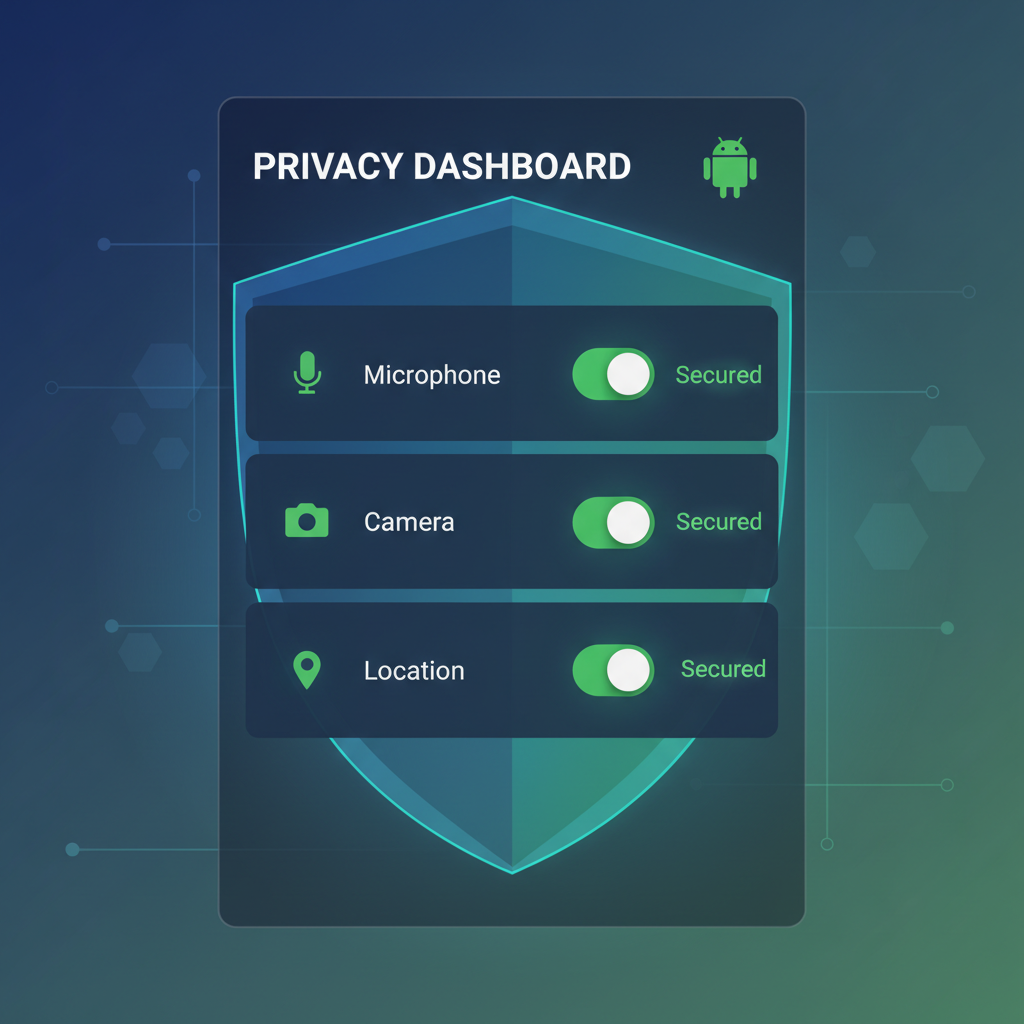
Android privacy dashboard and permissions
Where to start
On many Android devices, open Settings > Privacy > Privacy dashboard. The path may vary depending on your manufacturer, but the idea is the same: Android groups access by permission type so you can review activity more clearly.
Google’s Android Help explains that users can manage permissions from the privacy dashboard and also change permissions for a single app or by permission type.
Location
Location is the first permission to review because it can reveal habits, routines, commute patterns, and places you visit. Some apps need precise location, such as navigation or ride-hailing apps. Others may only need approximate location, such as weather apps.
If an app does not need location all the time, set it to Allow only while using the app or remove the permission entirely.
Camera and microphone
Camera and microphone access should match obvious features: video calls, voice notes, scanning, or content creation. If a game, flashlight app, or simple utility asks for microphone access without a clear reason, deny it and check whether the app still works.
Android shows indicators when camera or microphone access is active on many modern devices, so pay attention to unexpected activity.
Photos and videos
Photo access is more sensitive than it looks. A photo library can include documents, IDs, location metadata, screenshots, and private conversations. When Android offers limited photo selection, use it for apps that only need one image instead of full gallery access.
Contacts
Contacts permission should be rare. Messaging, phone, email, and social apps may need it, but many apps do not. If an app asks for contacts only to “find friends,” consider whether the convenience is worth sharing your address book.
Notifications
Notifications are not just noise; they shape how often you return to an app. Review apps that send promotions, reminders, or engagement prompts too often. Turning off non-essential notifications can improve privacy, focus, and battery life at the same time.
For more ideas, see our guide to digital wellbeing apps.
Play Protect and app safety
Permissions are only one layer. Google Play Protect also scans apps and can warn about harmful behavior. It is worth keeping Play Protect enabled, especially if you install many new apps or occasionally sideload APK files.
A monthly privacy routine
- Open the privacy dashboard
- Review location, camera, microphone, and contacts
- Remove permissions that no longer make sense
- Uninstall apps you no longer use
- Check Play Protect status in Google Play
- Review subscriptions and app updates
Final recommendation
Do not wait for something suspicious to happen. A five-minute permission review once a month can prevent years of unnecessary access. The best setting is not always “deny everything”; it is “allow only what the app truly needs.”
Sources and related reading
- Manage permissions from the privacy dashboard
- Change app permissions on Android
- Google Play Protect overview