Android Game Booster 2026: Hidden Settings to Remove Lag in Demanding Games
Android Game Booster 2026: Hidden Settings to Remove Lag in Demanding Games
If you play demanding titles on Android, you know lag is not always fixed by lowering the graphics. Often the problem lies in system settings Android does not show on the surface: how it manages memory, process priority, the network or temperature.
This guide walks through the most advanced settings you can try to reduce stuttering, micro-freezes and frame drops in Android games in 2026. Some require enabling developer options, others are specific to each manufacturer.
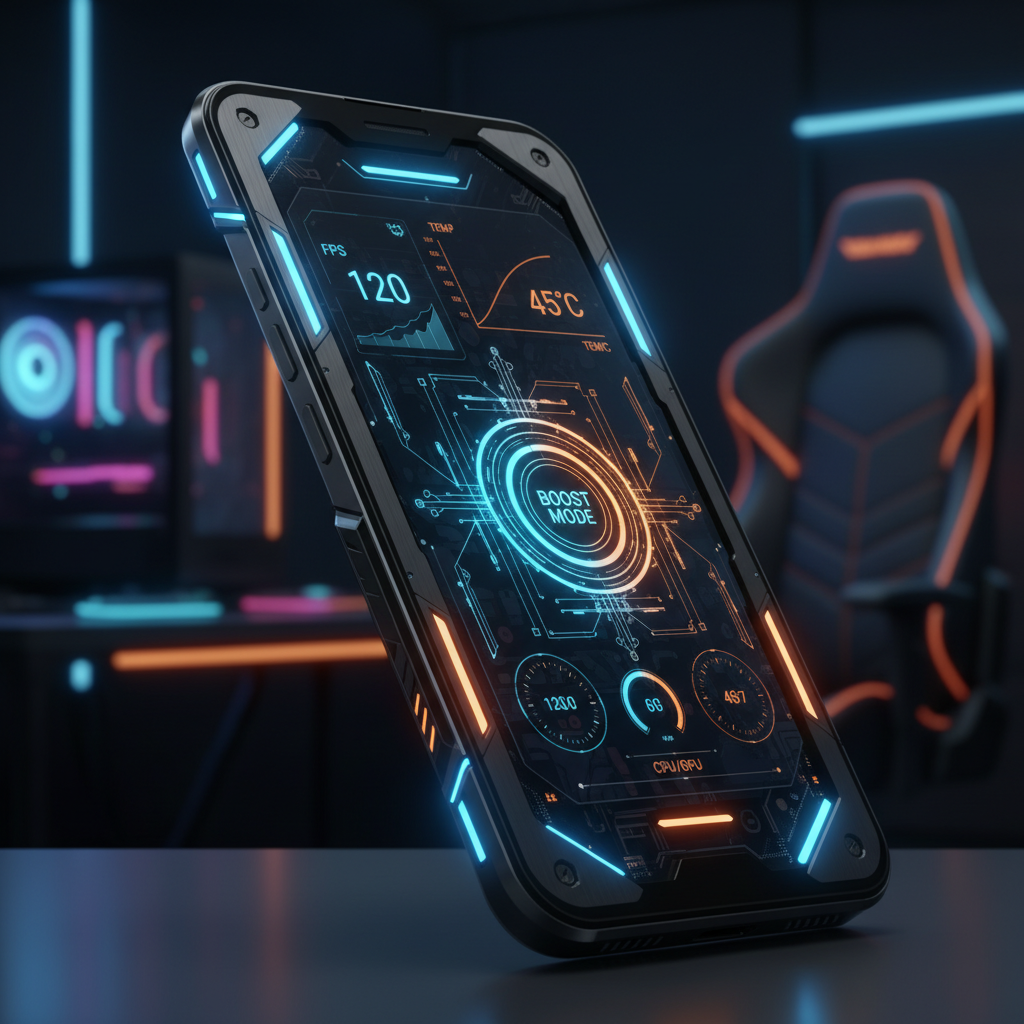
Game Booster Android 2026
1. Enable your manufacturer’s game booster
Before touching anything in the system, check whether your phone already includes a native game booster. Samsung has Game Launcher with performance mode, OnePlus has HyperTouch and Pro Gamer Mode, Xiaomi includes Game Turbo, and Pixels have had Game Mode since Android 15.
These modes usually do three useful things:
- Prioritize CPU and GPU for the running game.
- Block annoying notifications and calls.
- Limit the maximum temperature before the system throttles performance.
Enable it from the panel that appears when you open a game or from the manufacturer settings. It is not empty marketing: these modes change kernel scheduling priority, and in demanding games it shows.
2. Force GPU rendering (developer options)
Android uses a combination of CPU and GPU to render the interface by default. In games with many 2D elements or complex interfaces (menus, maps, HUD), forcing GPU rendering can lighten the processor load.
How to enable it:
- Enable the Developer menu: Settings > About phone > Build number → tap 7 times.
- Inside Developer options, look for Force GPU rendering and enable it.
- You can also enable Disable HW overlays if you notice flickering or artifacts in specific games.
Not every game benefits. If a game runs worse with this option, turn it off. It is a setting to test, not a universal fix.
3. Increase virtual memory (swap)
Virtual memory lets Android use part of the storage as extra RAM. On devices with 6 GB of RAM or less, increasing swap size can reduce sudden game closures when switching apps.
How to do it:
- In Developer options, look for Virtual memory size or Swap.
- Select a value above the default (for example, 4 GB if your phone has 6 GB of RAM).
- If your phone lacks this option, do not force it with third-party apps; they can cause instability.
Important: if your storage is UFS 2.1 or slower, increasing swap can hurt performance because read/write speeds are slower than RAM. On UFS 3.0 storage or better, the difference is smaller.
4. Tune the network scheduler for online games
Lag in online games is not always your connection’s fault. Sometimes Android prioritizes other apps in the network scheduler, so the game receives packets after a background download or a photo sync.
To minimize it:
- Pause large downloads while gaming (Play Store, app updates, cloud backups).
- Enable Airplane mode and then WiFi only to remove competition between radios.
- If your router allows it, enable QoS (Quality of Service) to prioritize game traffic.
On phones with a native game booster, also enable Priority network mode if available.
5. Thermal management: the silent enemy
Thermal lag is the hardest to diagnose because it does not show up in the first minutes. When the phone reaches a critical temperature, Android lowers the processor frequency to protect itself, and frames drop no matter the graphics settings.
To delay thermal throttling:
- Play without a thick case.
- Avoid fast charging during long sessions.
- Place the phone on a cool surface or use an external cooler if you play a lot.
- Look in the game booster for options like Prioritize performance instead of Balanced.
If your phone overheats in under 10 minutes with light games, the issue may be thermal paste or internal design, and no software tweak will fully fix it.
6. Reduce background processes
Android manages memory automatically, but you can help by limiting background processes from Developer options:
Background process limit: choose At most 3 processes or At most 2 processes. This keeps apps like social networks, messaging or sync from competing with the game.
Warning: this option may stop you receiving notifications from some apps while gaming. Use it only during gaming sessions and restore it afterwards.
7. Adjust refresh rate per game
If your phone lets you customize refresh rate per app, set it to maximum for compatible games and minimum for everything else. This keeps the system from holding 120 Hz in apps that do not need it, freeing resources for when you game.
On Samsung phones, this option lives in Game Launcher > Game settings. On OnePlus, inside display settings. On other manufacturers, look for Per-app refresh rate.
8. Use ADB for advanced settings
For more experienced users, some settings are only available through ADB (Android Debug Bridge). For example, you can change the CPU governor or force maximum performance mode with commands like:
adb shell settings put global game_driver_opt 1
adb shell cmd game performance_mode high
We do not recommend these changes if you do not know what you are doing. A wrong value can cause overheating or permanently reduce battery life. First research whether your specific device supports these settings.
Final recommendation
Do not enable every setting at once. Start with your manufacturer’s game booster and per-game refresh rate. If lag persists, try GPU rendering and background process limits. Leave ADB settings and virtual memory for very specific cases.
The best antidote to lag is not a single tweak but a combination of small changes adapted to your device and the specific game. If a setting does not improve the experience after several matches, turn it off.
Sources and related reading
- Samsung Game Launcher guide
- OnePlus Gaming mode overview
- Android Developers - Game Mode API
- AndroidAtlas - Performance settings for Android games in 2026
- AndroidAtlas - Tips to improve Android performance