Gemini Intelligence on Android: Complete Guide to Automating Your Smartphone
Gemini Intelligence on Android: Complete Guide to Automating Your Smartphone
Artificial intelligence is no longer a future promise on Android. With Gemini Intelligence, Google has built generative capabilities directly into the system, so your phone not only understands commands but also summarizes conversations, generates replies, extracts on-screen information and automates repetitive tasks with no third-party apps needed.
This guide covers the most practical Gemini Intelligence features on Android in 2026 and how to use them to save time every day.
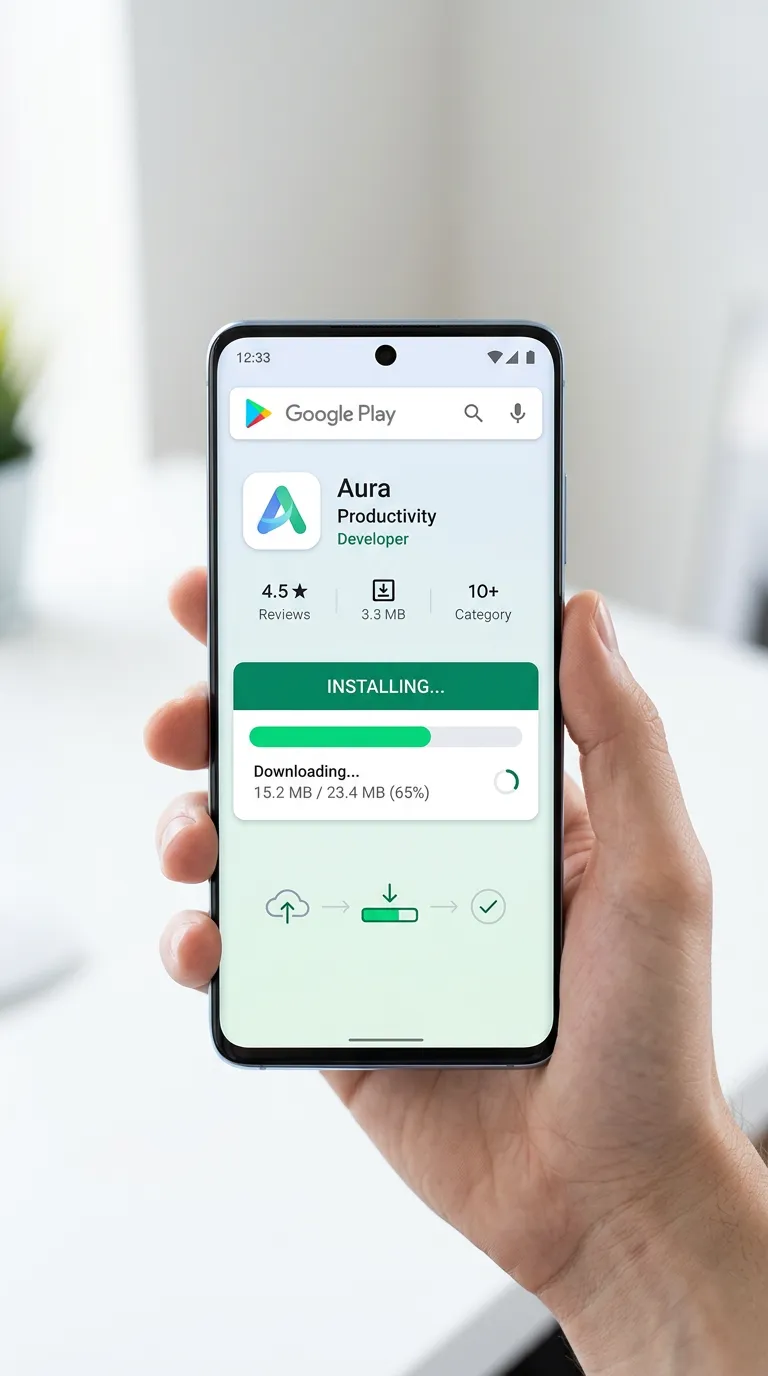
Gemini Intelligence on Android
How is Gemini different from the classic Assistant?
The classic Google Assistant runs commands: turn on the light, set an alarm, tell me the weather. Gemini goes further: it can read the context of what you see on screen, extract data from images, summarize long emails, generate reply drafts and chain several actions without you repeating the context.
For example, while reading an email with an address, Gemini can extract the address, open Maps, plan the route and add an intermediate stop with nothing more than your confirmation tap.
How to enable Gemini Intelligence
On many 2026 Android phones, Gemini comes preinstalled as part of Google services. To make sure it is active:
- Open Settings > Google > Gemini or search for “Gemini” in settings.
- Enable Use Gemini as your main assistant.
- Check screen and notification permissions so Gemini can read context.
If you have a Pixel or another compatible device, you can also enable the extra layer from the Google app.
1. Summarize content instantly
One of Gemini’s most useful features is summarizing web pages, long articles, emails or WhatsApp conversations. Instead of reading whole paragraphs, you can ask Gemini to extract the essentials.
How to use it: While viewing an article in Chrome or an email in Gmail, trigger Gemini with your assistant gesture (swipe from the bottom corner or hold the home button) and say something like “Summarize this” or “Give me the key points”.
Gemini analyzes the visible content and returns a structured summary. This works especially well with news, technical documentation and emails longer than three paragraphs.
2. Generate replies without typing
Gemini can write complete replies based on the context of what you are reading. If you get a message asking about availability for a meeting, Gemini can suggest a draft with your agenda, time options and a suitable tone.
How to use it: Open the conversation, trigger Gemini and say “Reply to this”. Gemini generates a reply you can edit before sending.
This not only saves time but helps keep a professional tone when answering formal emails or long messages from your phone.
3. Extract information from the screen
This feature is especially powerful for capturing data without manual copy-paste. Gemini can read what is on screen and extract addresses, phone numbers, dates, tracking codes, confirmation numbers or any structured data.
How to use it: With the relevant content visible, trigger Gemini and say “Extract the address” or “Save this number to contacts”. Gemini identifies the information and suggests actions: open Maps, create a calendar event, save a contact or copy to clipboard.
4. Automate tasks with Gemini Routines
Gemini routines go beyond classic Assistant routines. You can build conditional flows: “If I get an email from my boss after 6 PM, have Gemini summarize it and add it to my task list for tomorrow”.
How to create them: Go to Settings > Google > Gemini > Routines and define the trigger, the condition and the action. Routines can include steps like reading notifications, extracting text, generating summaries, opening apps or sending automatic replies.
Start with a simple routine, like summarizing the morning news, and add complexity as you get comfortable.
5. Gemini inside Google apps
Gemini is not just a standalone assistant. It also appears inside Google apps like Gmail (to draft emails), Google Docs (to generate text), Google Maps (to find places with natural language) and Google Photos (to search photos by description).
To get the most out of it, keep Google apps updated and the assistant language set to English.
Current limitations
No tool is perfect. Gemini can misread context, especially with very busy screens or complex images. Always review generated summaries and replies before sharing them.
Also, some features require a Gemini Advanced subscription (part of Google One), mostly those involving heavy document processing or image generation. Basic summarization and extraction are usually available at no extra cost.
Final recommendation
Start with one feature: content summarization. It is the easiest to fit into your routine and the one that saves the most time on quick reads. Once comfortable, add on-screen information extraction and then automated routines.
Gemini Intelligence will not turn your phone into a science assistant, but it does make it a more useful companion for daily phone work. The key is using it for small, repetitive tasks, not to replace your judgment.
Sources and related reading
- Google - Gemini Intelligence overview
- Android Help - Use Gemini on your phone
- AndroidAtlas - Android privacy and security settings in 2026
- AndroidAtlas - Android gestures to be more productive